
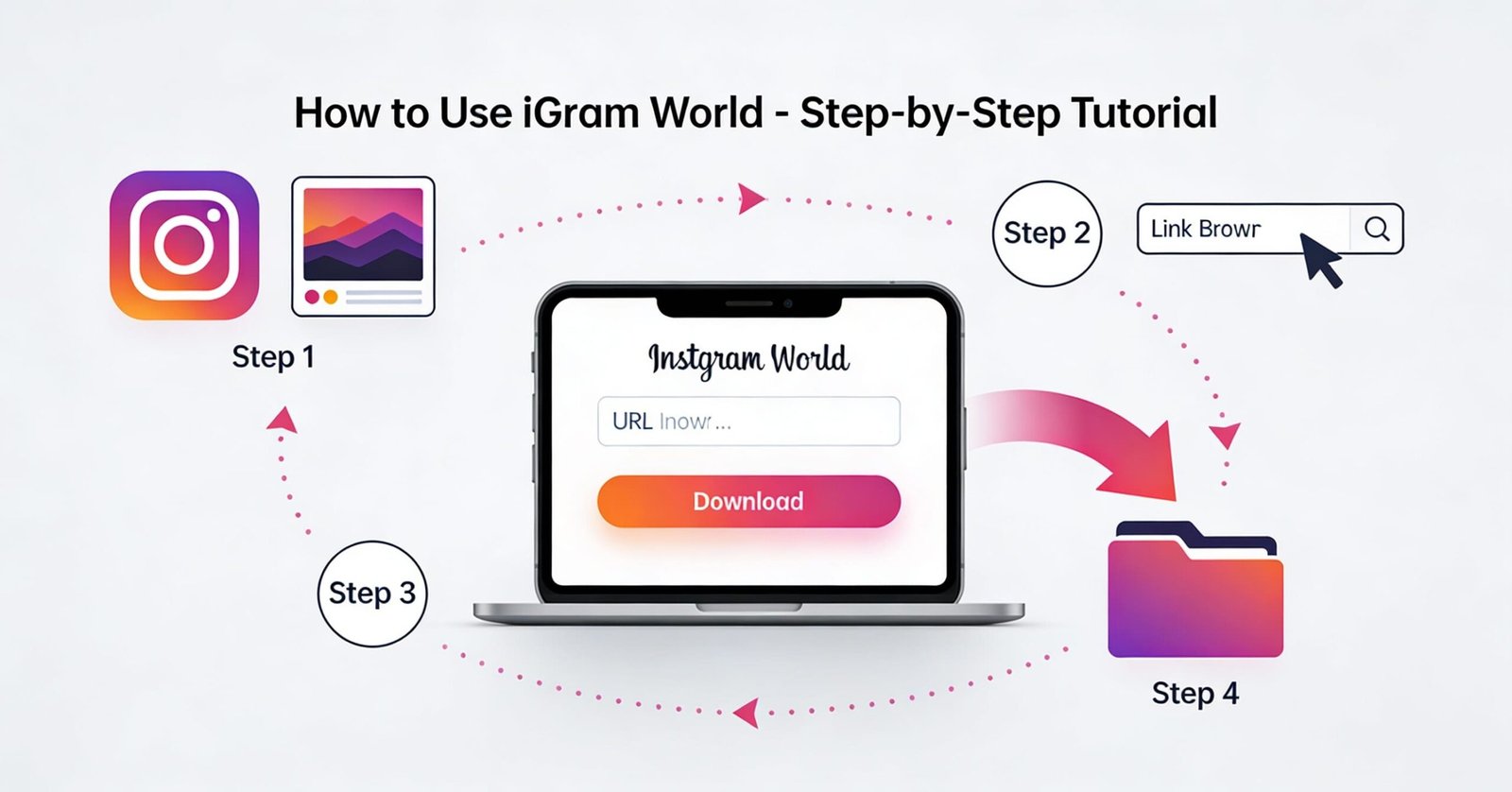
Downloading Instagram content has never been easier thanks to iGram World. But if you’re new to the platform, you might be asking yourself, “How to use iGram World?” This comprehensive tutorial will walk you through every step of using this powerful Instagram downloader, whether you’re on a computer, smartphone, or tablet.
In this guide, you’ll learn how to use iGram World to download videos, reels, stories, photos, and IGTV Content in just a few simple clicks. By the end of this tutorial, you’ll be able to save your favorite Instagram content effortlessly and enjoy it offline anytime, anywhere.
Getting Started: What You’ll Need
Before you begin using iGram World, make sure you have:
- An internet connection
- A web browser (Chrome, Firefox, Safari, Edge, etc.)
- The Instagram app or access to instagram.com
- The URL of the Instagram content you want to download
That’s it! Unlike other tools, iGram World doesn’t require account creation, software downloads, or login credentials.
Method 1: Downloading Instagram Videos Using iGram World
Step 1: Find the Instagram Video
Open the Instagram app on your phone or visit instagram.com on your computer. Navigate to the video you want to download. This could be a regular video post from any public profile.
Step 2: Copy the Video URL
On Mobile (Instagram App):
- Tap the three dots (…) icon at the top right of the post
- Select “Copy Link” from the menu
- The video URL is now copied to your clipboard
On Desktop (Web Browser):
- Click on the video to open it
- Copy the URL from your browser’s address bar
- Alternatively, right-click the post and select “Copy Link Address”
Step 3: Open iGram World
Open a new tab in your browser and navigate to igramworld.in. The clean, simple interface will immediately show you the download box.
Step 4: Paste the URL
Click on the text box on the iGram World homepage and paste the Instagram video URL you copied. You can paste using:
- Ctrl+V (Windows) or Cmd+V (Mac)
- Right-click and select “Paste”
- Long-press and tap “Paste” on mobile
Step 5: Click Download
After pasting the URL, click the “Download” button. iGram World will immediately begin processing your request.
Step 6: Choose Quality and Download
Within seconds, iGram World will present download options. You’ll typically see:
- High Quality (Original Resolution)
- Standard Quality (Compressed)
Click on your preferred quality option, and the video will begin downloading to your device. On mobile, you may need to confirm the download location.
Step 7: Locate Your Downloaded Video
On Desktop: Videos are usually saved to your “Downloads” folder unless you’ve specified a different location.
On Mobile: Check your phone’s “Downloads” folder or the gallery/photos app where downloads are typically stored.
Method 2: Downloading Instagram Reels with iGram World
Instagram Reels have become incredibly popular, and iGram World makes downloading them just as easy as regular videos.
Step-by-Step Process:
- Open the Instagram Reel you want to download
- Tap the three dots at the bottom right of the Reel (on mobile) or at the top (on desktop)
- Select “Copy Link” to copy the Reel URL
- Visit igramworld.in in your browser
- Paste the Reel URL into the download box
- Click Download and wait for processing
- Choose your quality preference from the options provided
- Save the Reel to your device
Pro Tip: Reels downloaded through iGram World maintain their original aspect ratio (9:16) and quality, perfect for repurposing or offline viewing.
Method 3: Saving Instagram Stories Using iGram World
Instagram Stories disappear after 24 hours, but iGram World allows you to preserve them permanently.
For Regular Story Posts:
- Open the Instagram Story you want to save
- Tap on the story to view it in full screen
- Tap the three dots at the bottom (or top on desktop)
- Select “Copy Link” (this option appears for public stories)
- Go to igramworld.in
- Paste the story URL in the download box
- Click Download and process
- Save the story to your device
For Story Highlights:
Story Highlights (the circular icons below a profile’s bio) can also be downloaded:
- Open the Highlight you want to download
- View the individual story within the highlight
- Copy the link for that specific story
- Use iGram World to download it following the same process
Important Note: You can only download stories from public accounts. Private account stories are not accessible through any third-party tool.
Read More: What is iGram World? The Ultimate Instagram Content Downloader
Method 4: Downloading Instagram Photos with iGram World
While photos are simpler than videos, iGram World offers a convenient way to download high-resolution Instagram images.
Single Photo Download:
- Navigate to the photo on Instagram
- Copy the post URL (using the three dots menu)
- Open igramworld.in
- Paste the URL and click Download
- Save the high-resolution image to your device
Carousel (Multiple Photos) Download:
For posts containing multiple photos:
- Copy the carousel post URL
- Paste it into iGram World
- The tool will detect all images in the carousel
- Download each image individually or all at once (depending on the feature)
- Save to your preferred location
Method 5: Downloading IGTV Videos
IGTV content, which can be longer than regular posts, is fully supported by iGram World.
Steps:
- Open the IGTV video on Instagram
- Copy the video URL from the share options
- Visit igramworld.in
- Paste the IGTV URL
- Click Download and wait for processing (may take longer for longer videos)
- Select quality (IGTV videos often have multiple quality options)
- Download and save the video
Using iGram World on Different Devices
On Android Phones:
Android users have the smoothest experience with iGram World:
- Downloaded files automatically save to your Download folder
- Access them through your File Manager or Gallery app
- Chrome browser works best for compatibility
- Consider creating a home screen shortcut to igramworld.in for quick access
On iPhone/iPad (iOS):
iOS users should follow these specific steps:
- Use Safari or Chrome browser
- When downloading, you may need to tap and hold the download link
- Select “Download Linked File” from the menu
- Find downloads in the Files app under “Downloads”
- Move files to Photos app if desired
On Desktop/Laptop:
Desktop users enjoy additional flexibility:
- Use any modern browser (Chrome, Firefox, Edge, Safari)
- Downloads save to your default Downloads folder
- Right-click download links for “Save As” options to choose location
- Can download multiple files simultaneously
Advanced Tips and Tricks
Tip 1: Create a Bookmark for Quick Access
Save time by bookmarking igramworld.in in your browser. On mobile, you can even add it to your home screen for one-tap access.
To Add to Home Screen (Mobile):
- Android: Chrome Menu > Add to Home Screen
- iOS Safari: Share Button > Add to Home Screen
Tip 2: Download Before Content Disappears
Since Instagram stories disappear after 24 hours, use iGram World to download them as soon as you see something you want to save.
Tip 3: Organize Your Downloads
Create specific folders on your device for different types of Instagram content:
- “Instagram Videos”
- “Instagram Reels”
- “Instagram Stories”
- “Instagram Inspiration”
This keeps your downloads organized and easy to find later.
Tip 4: Check Video Quality Before Downloading
If you’re downloading for professional use, always select the highest quality option available to ensure the best resolution.
Tip 5: Use on WiFi for Large Files
When downloading multiple videos or long IGTV content, connect to WiFi to avoid using up your mobile data.
Troubleshooting Common Issues
Issue 1: “Unable to Download” Error
Solutions:
- Verify the Instagram post is from a public account
- Check that the URL was copied correctly (no extra spaces)
- Try refreshing the iGram World page
- Ensure your internet connection is stable
Issue 2: Low Quality Download
Solutions:
- Select the “High Quality” or “Original” option if available
- The quality depends on the original upload quality
- Some very old Instagram posts may only be available in lower resolution
Issue 3: Download Not Starting
Solutions:
- Check your browser’s popup blocker settings
- Allow downloads from igramworld.in in your browser settings
- Try a different browser
- Clear your browser cache and cookies
Issue 4: Video Won’t Play After Download
Solutions:
- Ensure the download completed fully
- Try opening with a different media player
- Re-download the video
- Check that you have sufficient storage space
Issue 5: Can’t Find Downloaded Files
Solutions:
- Check your device’s Downloads folder
- Look in your browser’s download history
- On mobile, check your Gallery or Photos app
- Use your device’s search function to find recent downloads
Best Practices for Using iGram World
1. Respect Copyright and Privacy
Only download content you have permission to use. Don’t violate creators’ rights or Instagram’s terms of service.
2. Give Credit to Original Creators
If you share downloaded content, always credit the original creator. This supports the Instagram community.
3. Use for Personal Purposes
iGram World is best used for personal backup, offline viewing, and inspiration gathering rather than commercial redistribution.
4. Keep Your Downloads Organized
Maintain a clear filing system to easily locate downloaded content later.
5. Stay Updated
Bookmark igramworld.in and check back occasionally for new features and improvements.
Frequently Asked Questions
Q: How long does it take to download a video? A: Most downloads process in 2-5 seconds, though longer videos may take up to 10-15 seconds.
Q: Is there a limit to how many videos I can download? A: No, iGram World offers unlimited downloads at no cost.
Q: Can I download videos from private accounts? A: No, only public account content can be downloaded.
Q: Does the creator get notified when I download their content? A: No, downloading through iGram World is completely anonymous.
Q: Can I download Instagram Live videos? A: Only if the creator has saved the Live video to their profile as a regular video or IGTV.
Q: Do I need an Instagram account to use iGram World? A: No, you don’t need to be logged into Instagram to use iGram World.
Conclusion
iGram World provides the simplest, fastest way to download Instagram content across all devices and platforms. Whether you’re saving videos, reels, stories, or photos, this step-by-step guide has shown you exactly how to use every feature of this powerful tool.
Remember to use iGram World responsibly, respect content creators’ rights, and enjoy the convenience of having your favorite Instagram content available offline whenever you need it.
Ready to start downloading? Visit igramworld.in now and save your first Instagram video in seconds!