Introduction
Snapseed QR Code has become one of the easiest ways for mobile photographers and content creators to share professional photo editing presets. Whether you’re a beginner learning mobile editing or an experienced photographer looking to speed up your workflow, the Snapseed QR Code feature allows you to apply stunning edits with just a simple scan.
Unlike traditional preset files, a Snapseed QR Code stores your editing settings inside a QR image. Anyone with the Snapseed app can scan the code and instantly apply the same adjustments to their own photos. This saves time while maintaining consistent editing styles across multiple images.
In this complete guide, you’ll learn everything about Snapseed QR Code, including how it works, how to create one, how to scan one, common mistakes, best practices, and frequently asked questions.
What Is Snapseed QR Code?
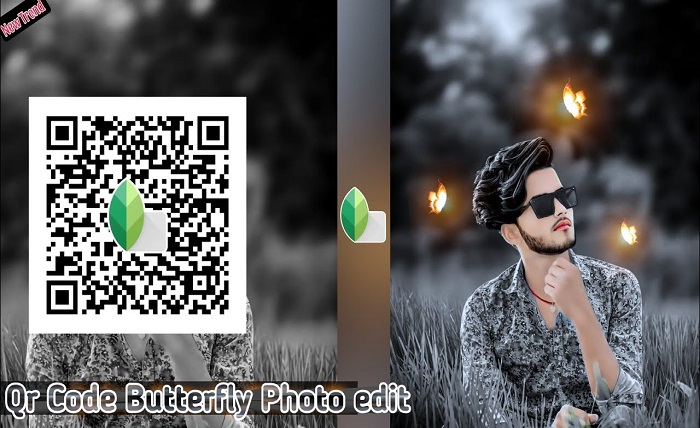
A Snapseed QR Code is a QR image generated by the Snapseed photo editing application that contains all of your editing adjustments. Instead of manually recreating edits such as brightness, contrast, curves, HDR effects, healing, or selective adjustments, users can simply scan the Snapseed QR Code and instantly apply the same settings.
This feature is especially popular among:
- Instagram creators
- Mobile photographers
- Travel bloggers
- Portrait editors
- Wedding photographers
- Influencers
- Social media managers
The biggest advantage of using a Snapseed QR Code is consistency. Every image can receive the exact same editing style without spending extra time repeating each adjustment manually.
Why Is Snapseed QR Code So Popular?
The popularity of the Snapseed QR Code has increased dramatically because it simplifies professional editing for everyone. Even users with no editing experience can achieve impressive results by scanning a preset.
Some of the major benefits include:
- Saves editing time
- Easy to share with friends
- Creates consistent photo themes
- Perfect for social media branding
- Beginner-friendly
- Free to use
- No complicated preset installation
Many photographers build their own signature editing style and distribute it using a Snapseed QR Code, making collaboration much easier.
Another reason for its popularity is that Snapseed itself is free, meaning anyone can use a Snapseed QR Code without paying for premium subscriptions.
How to Create a Snapseed QR Code
Creating a Snapseed QR Code is surprisingly simple. Once you’ve edited a photo, you can save those adjustments into a QR format.
Follow these steps:
Step 1
Open Snapseed.
Step 2
Import your favorite image.
Step 3
Edit the photo using your preferred tools.
Step 4
Tap the menu in the upper-right corner.
Step 5
Select QR Look.
Step 6
Choose Create QR Look.
Step 7
Snapseed generates your unique Snapseed QR Code.
Step 8
Save or share the QR image.
Now anyone can scan your Snapseed QR Code and apply your editing style instantly.
How to Scan a Snapseed QR Code
Using a Snapseed QR Code is even easier than creating one.
Follow these simple instructions:
- Open Snapseed.
- Add your photo.
- Tap the menu icon.
- Select QR Look.
- Choose Scan QR Look.
- Point your camera toward the Snapseed QR Code.
- Wait a few seconds.
- The preset automatically applies to your photo.
If the QR image is stored on your phone instead of printed, you can usually import the QR image directly depending on your device’s sharing options.
Scanning a Snapseed QR Code takes only a few seconds, making it one of the fastest ways to edit photos professionally.
Best Ways to Use Snapseed QR Code
A Snapseed QR Code works well for many editing styles. Instead of creating new edits every time, you can build a collection of presets for different occasions.
Popular editing categories include:
Portrait Editing
Smooth skin, warm tones, balanced highlights, and enhanced eyes.
Travel Photography
Bright skies, vibrant landscapes, and colorful buildings.
Food Photography
Sharper textures, rich colors, and increased clarity.
Nature Photography
Deep greens, dramatic contrast, and vibrant blues.
Moody Editing
Dark shadows, faded colors, cinematic tones.
Vintage Editing
Warm colors, grain effects, faded highlights.
Black and White
Classic monochrome with enhanced contrast.
Creating multiple Snapseed QR Code presets allows photographers to organize different editing styles for different types of photography.
Tips for Getting the Best Results with Snapseed QR Code
Although a Snapseed QR Code makes editing easier, the final result still depends on the original photo.
For the best outcome:
- Use high-resolution images.
- Avoid blurry photos.
- Adjust exposure before scanning if necessary.
- Use similar lighting conditions.
- Fine-tune brightness after applying the preset.
- Keep your Snapseed app updated.
- Experiment with different QR presets.
Remember that every Snapseed QR Code works slightly differently depending on the lighting, camera quality, and image composition.
Professional editors often modify the final image slightly after scanning the Snapseed QR Code to achieve the perfect look.
Common Problems and Solutions for Snapseed QR Code
Sometimes users experience issues while using a Snapseed QR Code. Fortunately, most problems are easy to solve.
QR Code Won’t Scan
Make sure the QR image is clear and not blurry.
Editing Looks Different
Different lighting conditions affect how a Snapseed QR Code appears. Adjust brightness or contrast manually after applying the preset.
QR Image Is Low Quality
Always save the Snapseed QR Code in high resolution to prevent scanning errors.
Older Version of Snapseed
Update the app before trying to scan a newer Snapseed QR Code.
Preset Doesn’t Match
Some edits are optimized for portraits while others are intended for landscapes. Use the correct Snapseed QR Code for the appropriate image type.
Conclusion
The Snapseed QR Code feature has transformed mobile photo editing by making professional-quality presets easy to create, share, and use. Instead of repeating the same editing process for every image, photographers can simply generate or scan a Snapseed QR Code and apply a consistent editing style in seconds.
Whether you’re editing portraits, travel photos, food images, or social media content, using a Snapseed QR Code saves valuable time while maintaining a polished and professional appearance. By understanding how to create, scan, and customize QR presets, you’ll be able to elevate your editing workflow and produce stunning photos with minimal effort.
FAQs
1. What is a Snapseed QR Code?
A Snapseed QR Code is a QR image that stores photo editing settings created in Snapseed, allowing others to apply the same edits instantly.
2. Is Snapseed QR Code free?
Yes. The Snapseed QR Code feature is completely free to use within the Snapseed app.
3. Can I create my own Snapseed QR Code?
Absolutely. After editing a photo, you can generate your own Snapseed QR Code through the app’s QR Look feature.
4. Why doesn’t my Snapseed QR Code work?
A Snapseed QR Code may fail if the image is blurry, damaged, low resolution, or if you’re using an outdated version of Snapseed.
5. Can I share Snapseed QR Code with others?
Yes. You can save the Snapseed QR Code as an image and share it through messaging apps, social media, email, or your website.